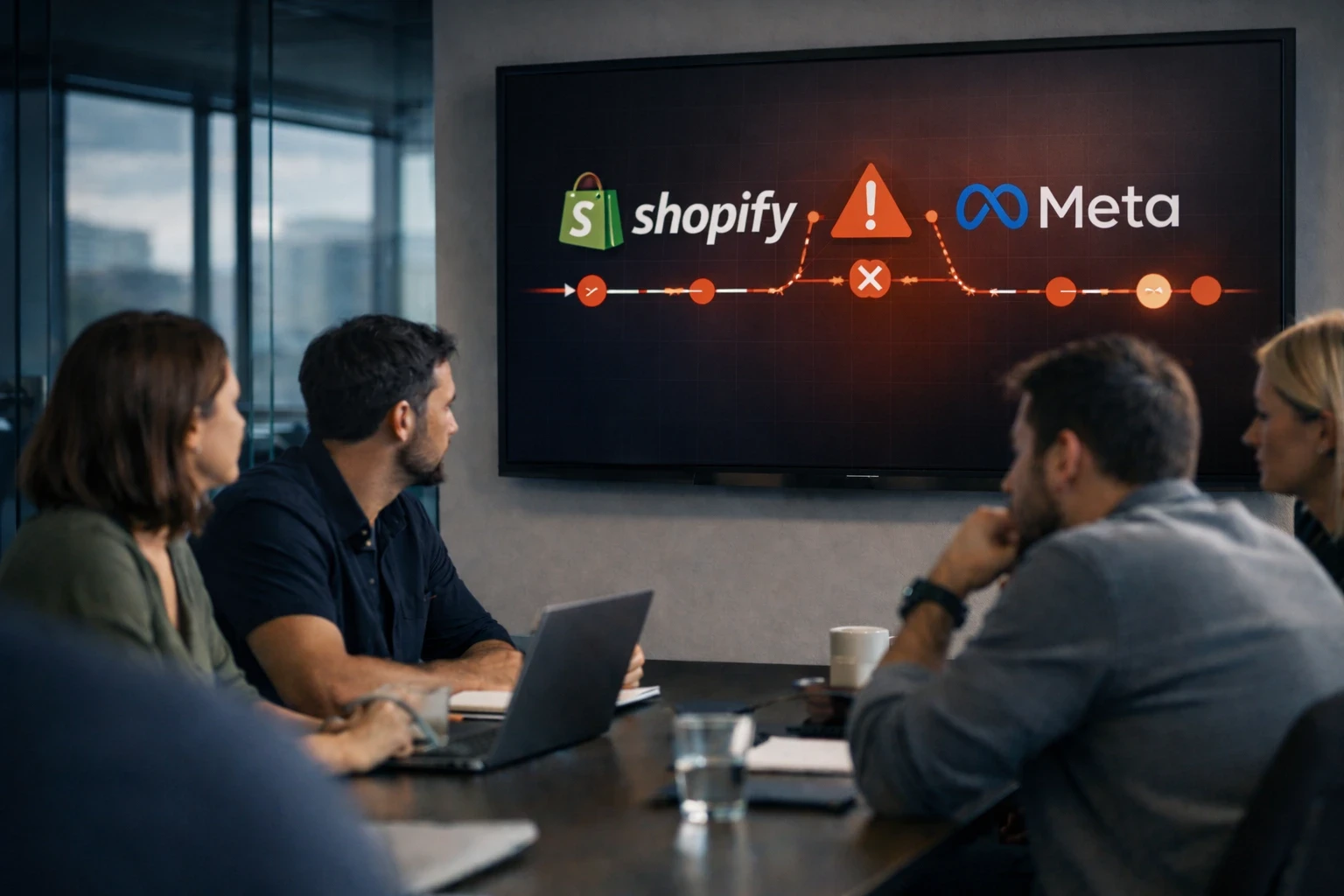
Your Meta Pixel stopped tracking. Or it's tracking some events but missing purchases. Here's how to diagnose the problem and fix it — fast.
If your Meta Pixel isn't working on Shopify, you're not alone. It's one of the most common problems store owners face — and one of the most expensive to ignore.
When your pixel breaks, Meta can't see your conversions. That means the algorithm can't learn who's buying, your campaigns lose optimization power, and your cost per purchase climbs while your ROAS tanks.
The good news: most pixel issues have straightforward fixes. This guide walks through the 5 most common causes of Meta Pixel problems on Shopify and exactly how to solve each one.
How to Know If Your Meta Pixel Is Broken
Before diving into fixes, confirm whether your pixel is actually broken. Here are the signs:
Events Manager shows no activity — Your pixel should show PageView, ViewContent, AddToCart, and Purchase events. If it's empty or only shows partial data, something's wrong.
Purchases aren't tracking — You see orders in Shopify, but Meta Events Manager shows zero or far fewer Purchase events. If this is your primary symptom, see Meta ads showing zero conversions for the full diagnostic — this article covers the pixel layer, but the symptom can have causes beyond pixel configuration.
Duplicate events firing — Events like AddToCart or Purchase fire multiple times per action, inflating your conversion data.
Pixel Helper shows errors — The Meta Pixel Helper Chrome extension flags warnings or shows no pixel detected on your store.
Revenue doesn't match — Shopify shows $10,000 in sales, but Meta reports $3,000. That gap means broken tracking.
If any of these apply, keep reading.
Fix #1: Verify Your Pixel ID Is Correct
The problem: You're using the wrong pixel ID, or you have multiple pixels from different setup attempts causing conflicts.
This is more common than you'd think. Many stores end up with two or three pixels connected to their Business Manager — from previous agencies, old integrations, or failed setup attempts.
How to fix it:
Go to Meta Events Manager and note your active Pixel ID
In Shopify, go to Sales Channels → Facebook & Instagram → Settings
Check the Pixel ID shown matches the one in Events Manager
If they don't match, disconnect and reconnect with the correct pixel
Pro tip: In Meta Business Manager, go to Business Settings → Data Sources → Pixels and deactivate any old, unused pixels to avoid confusion.
Fix #2: Enable Maximum Data Sharing
The problem: Your data sharing level is set to "Standard" or "Enhanced," which limits what Shopify sends to Meta — especially when browsers block tracking.
Shopify offers three data sharing levels:
Standard — Browser-based pixel only. Easily blocked by ad blockers and iOS privacy settings.
Enhanced — Adds Advanced Matching (sends customer email, phone, name to improve matching).
Maximum — Adds Conversion API (CAPI), which sends server-side data directly to Meta.
If you're not on Maximum, you're leaving conversions on the table.
How to fix it:
In Shopify, go to Sales Channels → Facebook & Instagram
Click Settings → Data sharing settings
Set Customer Data Sharing to Maximum
Confirm your pixel is connected
Click Save
This activates server-side tracking through Meta's Conversion API. When browser-based tracking fails (which happens constantly in 2026), server-side events still reach Meta.
Fix #3: Remove Duplicate Pixel Scripts
The problem: You have multiple pixel scripts firing on your store — from manual code, old apps, or theme customizations — causing duplicate events and corrupted data.
Duplicate pixels wreck your tracking in two ways. For the deeper diagnostic specifically on multiple Meta pixels on Shopify, see that guide — it covers the full duplicate-detection workflow this fix abbreviates.
Inflated conversion counts — One purchase fires as two or three, making ROAS look artificially high
Confused attribution — Meta doesn't know which pixel to trust, so optimization suffers
How to fix it:
In Shopify, go to Apps and uninstall any old Facebook pixel apps or third-party tracking tools you're not actively using
Go to Online Store → Themes → Edit Code
Search
theme.liquidand any header files for "fbq" or "facebook" pixel codeRemove any manually-added pixel scripts — let Shopify's native integration handle it
Check Settings → Customer Events for any duplicate pixel configurations
How to check for duplicates: Install the Meta Pixel Helper Chrome extension, visit your store, and perform actions like viewing a product or adding to cart. If you see the same event fire multiple times, you have duplicates.
Fix #4: Verify Your Domain in Meta Business Manager
The problem: Your domain isn't verified in Meta Business Manager, which can block certain events from being attributed — especially after iOS 14+ privacy updates.
Domain verification tells Meta you own the website sending conversion data. Without it, your pixel may work partially but miss key events like purchases.
How to fix it:
Go to Meta Business Manager → Business Settings → Brand Safety → Domains
Click Add and enter your Shopify store domain (e.g., yourstore.com)
Choose the meta-tag verification method (easiest for Shopify)
Copy the meta tag code provided
In Shopify, go to Online Store → Themes → Edit Code → theme.liquid
Paste the meta tag in the
<head>sectionReturn to Business Manager and click Verify
Important: Make sure the pixel you're using is assigned to the same Business Manager that owns the verified domain. If they're in different Business Managers, Meta may block event attribution.
Fix #5: Test Events With a Real Purchase
The problem: Your pixel fires for browsing events (PageView, ViewContent, AddToCart) but fails on Purchase events specifically.
This is common because Purchase events fire on the checkout confirmation page — which has different code, permissions, and potential points of failure than the rest of your store.
How to fix it:
Go to Meta Events Manager → Test Events
Enter your store URL and click Open Website
Browse your store: view a product, add to cart, go to checkout
Watch Events Manager — you should see ViewContent, AddToCart, InitiateCheckout appear
Complete a real test purchase using a low-cost product or discount code
Confirm the Purchase event appears in Test Events with the correct value
If Purchase doesn't fire:
Check that your payment gateway is connected properly
Ensure no apps are interfering with the checkout confirmation page
Verify you're on Maximum data sharing (Fix #2)
Make sure the Conversion API is active — server-side Purchase events should still fire even if browser events fail
When Pixel Fixes Aren't Enough
Here's the uncomfortable truth: sometimes your pixel isn't "broken" — it's working exactly as designed. The problem is that browser-based pixel tracking is fundamentally limited in 2026.
Even with a perfectly configured pixel, you'll still miss conversions when:
Users have ad blockers installed
iOS users opt out of tracking (95% do)
Browsers strip tracking parameters from URLs
Customers switch devices between click and purchase
Privacy browsers block third-party cookies
For the deeper root-cause guide on browser pixel blocking and what each browser does differently, see that breakdown — it covers Safari ITP, Brave, and Firefox ETP behaviors in detail.
If you've worked through all 7 fixes and your pixel is technically functioning, but you're still missing 40-60% of conversions, the issue isn't configuration — it's the limitations of pixel-based tracking itself.
The solution: Server-side tracking that captures conversions directly from your Shopify backend, regardless of what's happening in the browser. To see how server-side tracking actually works end-to-end — capture, identity stitching, and CAPI delivery as a single connected workflow — that walkthrough makes the architecture concrete. This is why Shopify's Maximum data sharing (with Conversion API) helps — but native CAPI implementation often has poor event match quality.
For stores serious about accurate tracking, purpose-built server-side solutions capture every real order and push it to Meta with proper data enrichment, closing the attribution gaps that pixels can't fix. To see this on an account similar to yours, get a personalized demo.
Quick Diagnostic Checklist
Run through this checklist to diagnose your pixel issue:
Check | Where to Look | What to Do If Wrong |
|---|---|---|
Pixel ID matches | Shopify FB settings vs. Events Manager | Reconnect correct pixel |
Data sharing is Maximum | Shopify → FB & Instagram → Settings | Change to Maximum |
No duplicate scripts | Theme code + Apps | Remove old code/apps |
Domain is verified | Meta Business Manager → Domains | Add and verify domain |
Purchase events fire | Events Manager → Test Events | Run a test purchase |
Summary
Most Meta Pixel issues on Shopify come down to one of these 5 problems:
Wrong Pixel ID — Verify you're using the correct, active pixel
Low data sharing level — Switch to Maximum for Conversion API
Duplicate scripts — Remove old pixel code and apps
Unverified domain — Verify in Meta Business Manager
Purchase events failing — Test with a real order
Fix these, and your pixel should start tracking accurately. But remember — even a perfect pixel only captures a fraction of conversions in 2026. For complete tracking, you need infrastructure that works regardless of browser limitations.
Get Started
Start Tracking Every Sale Today
Join 10+ e-commerce stores. Set up in 5 minutes, see results in days.